Issue #661 (Vizzly Review, CSS/HTML, AI Tools, Media)03/19/26
The following is a paid product review for Vizzly, a visual testing tool that enables teams to easily capture and compare changes so they can catch bugs before shipping.
Today, with the advent of AI, and the number of tools available, it is more important than ever to be able to ship quickly. But like anything that's done in rapid fashion, you don't want to sacrifice quality.
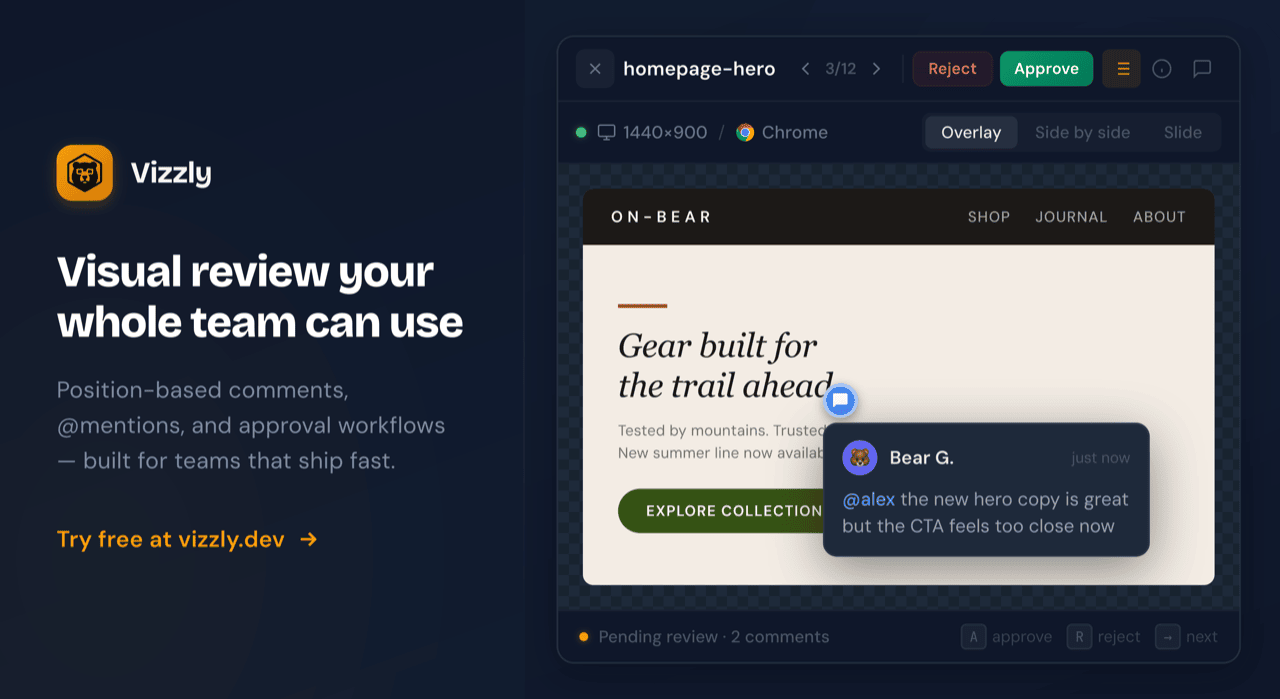
So testing is a crucial part of the shipping process. This is where Vizzly comes in. Vizzly is a visual testing tool with team collaboration features that enables you to use visual diffs to approve your UI changes before putting it out to the world.
Here's a basic rundown of the main features of Vizzly:
- While coding, run a simple CLI command to test your changes locally against a baseline that you define
- Find real UI changes that filter through noise like timestamps and ads, going beyond image vs. image comparisons
- Works with your existing testing setup, whether you use Playwright, Puppeteer, Cypress, or any testing framework
- Collaborate with your team by adding feedback directly to screenshots with support for @mentions and notifications
Setting Up Your Vizzly Account
To get started with Vizzly for free, sign up for an account then ensure you have Node.js version 22 or higher installed.
Run the following command to install Vizzly:
|
npm install -g @vizzly-testing/cli
|
Next you can choose to sign in using the local `vizzly login` command. Or you can go to your Vizzly dashboard to create an API token that you can use for generating your tests. There's a great quickstart guide in the docs, so check that out for more details on the setup.
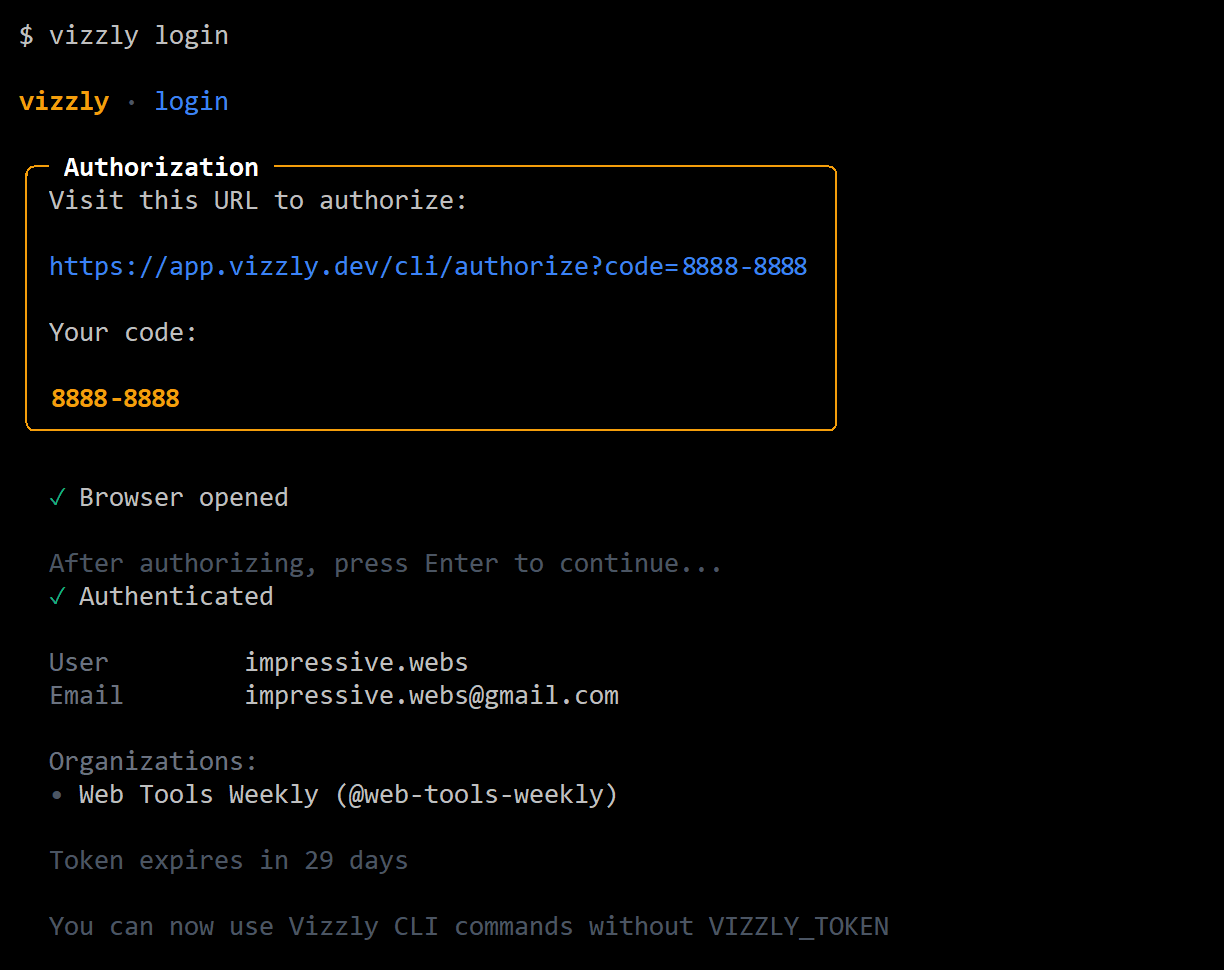
If you use the local option, you'll be taken to your browser to authenticate using a custom URL. Then you'll see something like the following in your terminal:
Authenticating Your Vizzly login
If you choose the local login, you might have to ensure your local server is using SSL, so you can start doing things like adding screenshots that will show up in your Vizzly dashboard.
Uploading Screenshots to Vizzly
Technically, you don't have to use a testing framework for comparing your UI screenshots, but doing that sort of thing manually is not optimal. In my case, I was able to set up a quick Playwright script that generates my screenshots and puts them into a designated folder.
To upload my screenshots, I used an auth token with the following command, which I ran at the root of my project folder:
|
vizzly upload ./screenshots --token MY_TOKEN_HERE
|
This assumes I have a folder called "screenshots" where I generate my test results. And of course, you would include your own token in place of the last argument.
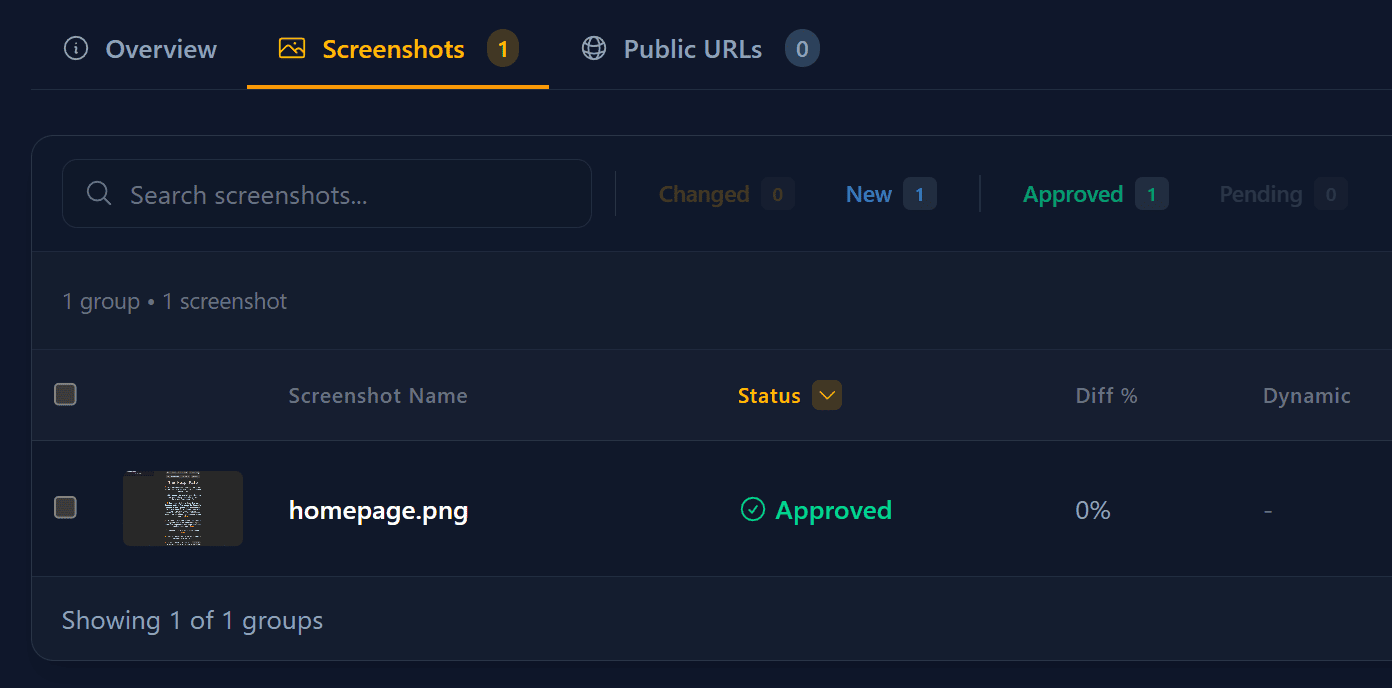
The project I ended up testing for this review is an older one that I haven't updated in a while, so it needed a fresh JavaScript makeover. First I used the Playwright script to generate a 'baseline' of what I want the UI to look like (the current home page before any changes). I upload this to Vizzly using the above command, then I have to go into the Vizzly dashboard to "approve" this as my baseline.
My first Vizzly upload, approved as my "baseline"
Next I want to generate another screenshot after I've made my JavaScript changes. In this case, I asked an AI tool to optimize my core JavaScript, which I then used to replace my old script. I ran my Playwright script again and uploaded the new screenshot to Vizzly.
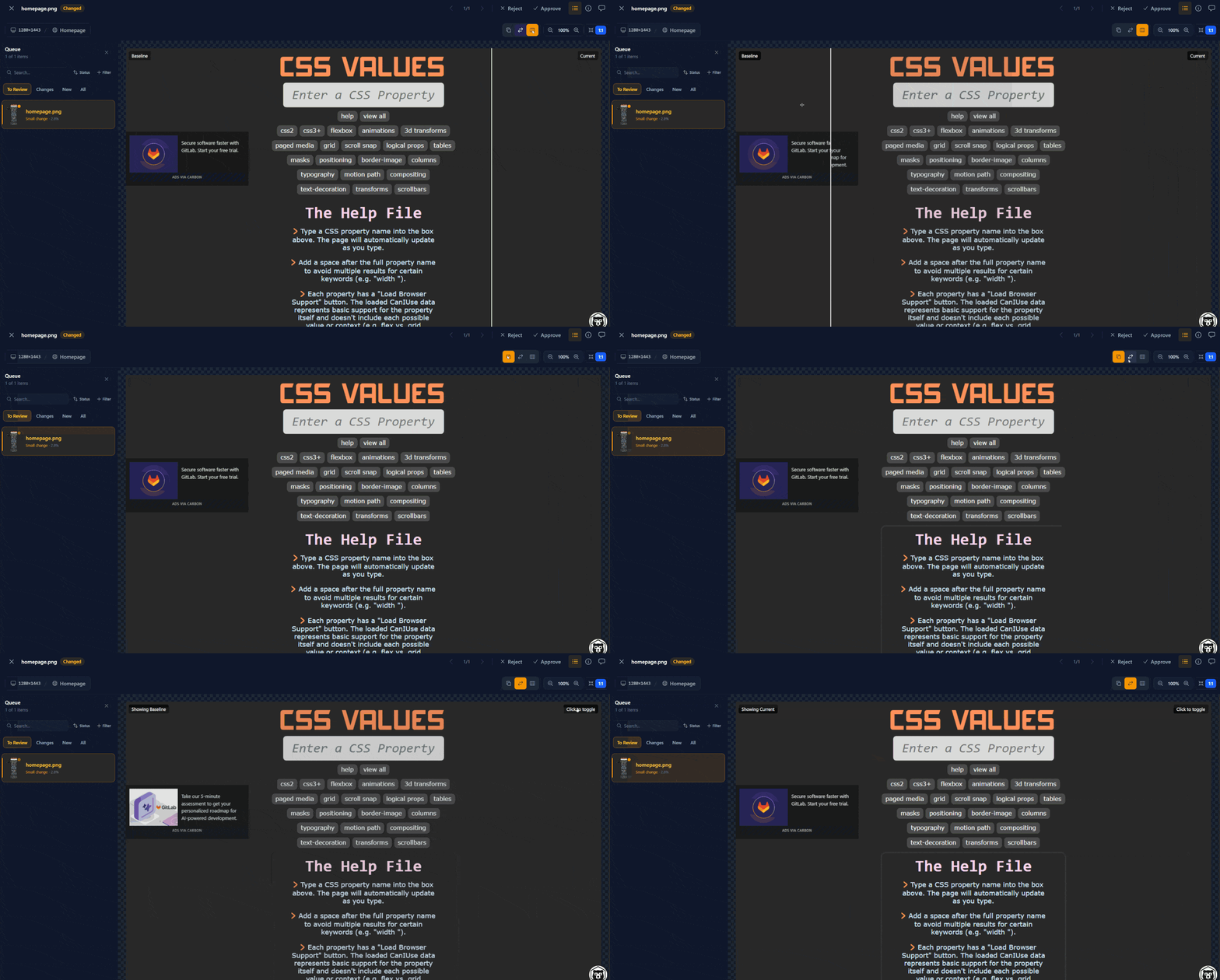
Now I can go into the Vizzly dashboard and visually test my new screenshot, taken after my JavaScript overhaul. Because these are JavaScript changes, I don't expect any UI changes to occur, but Vizzly lets me confirm that. Notice that the only significant UI change in the example below is the ad, which is expected.
Testing out my new build against my baseline
When I click to view my new 'build', Vizzly includes three different options for doing the visual comparison, all of which I tested above:
- A diff overlay that toggles on/off when you click the image
- An overlay that puts the new image over the baseline with click to toggle
- A baseline vs. current comparison slider
After I do my comparison, I can either approve or reject. In this case, the new build looked good so I approved it.
Using Vizzly in Your Workflow
There are a whole slew of ways you can incorporate Vizzly into your workflow, as outline in their docs:
- CLI integration, which sends tests to the Vizzly dashboard in the cloud
- TDD Mode, which does all your tests locally, and automatically opens a local server that spawns a local dashboard
- The Vizzly SDKs, with integrations for JS/Node.js, Ruby, Storybook, Vitest, Ember, Swift, or any static site (Gatsby, Next.js, Astro, etc.)
- CI/CD integration, which incorporates Vizzly into your CI pipeline so you can streamline catching bugs and visual regressions
- AI integrations, which allow you to use AI agents that run Vizzly's CLI commands, then parse JSON output and respond accordingly
Similar to what I showed above, I was able to quickly spin up a local Vizzly environment (i.e., TDD Mode), allowing me to use a modified Playwright script that captures my screenshots in a buffer that then gets sent to the local dashboard.
Here's the relevant portion of my Playwright script:
|
// Capture the screenshot as a buffer
const screenshot = await page.screenshot({ fullPage: true });
// Send the screenshot to the local TDD dashboard
// This assumes server at http://localhost:47392
await vizzlyScreenshot('homepage', screenshot);
console.log('✅ Success! Screenshot sent to Vizzly dashboard.');
|
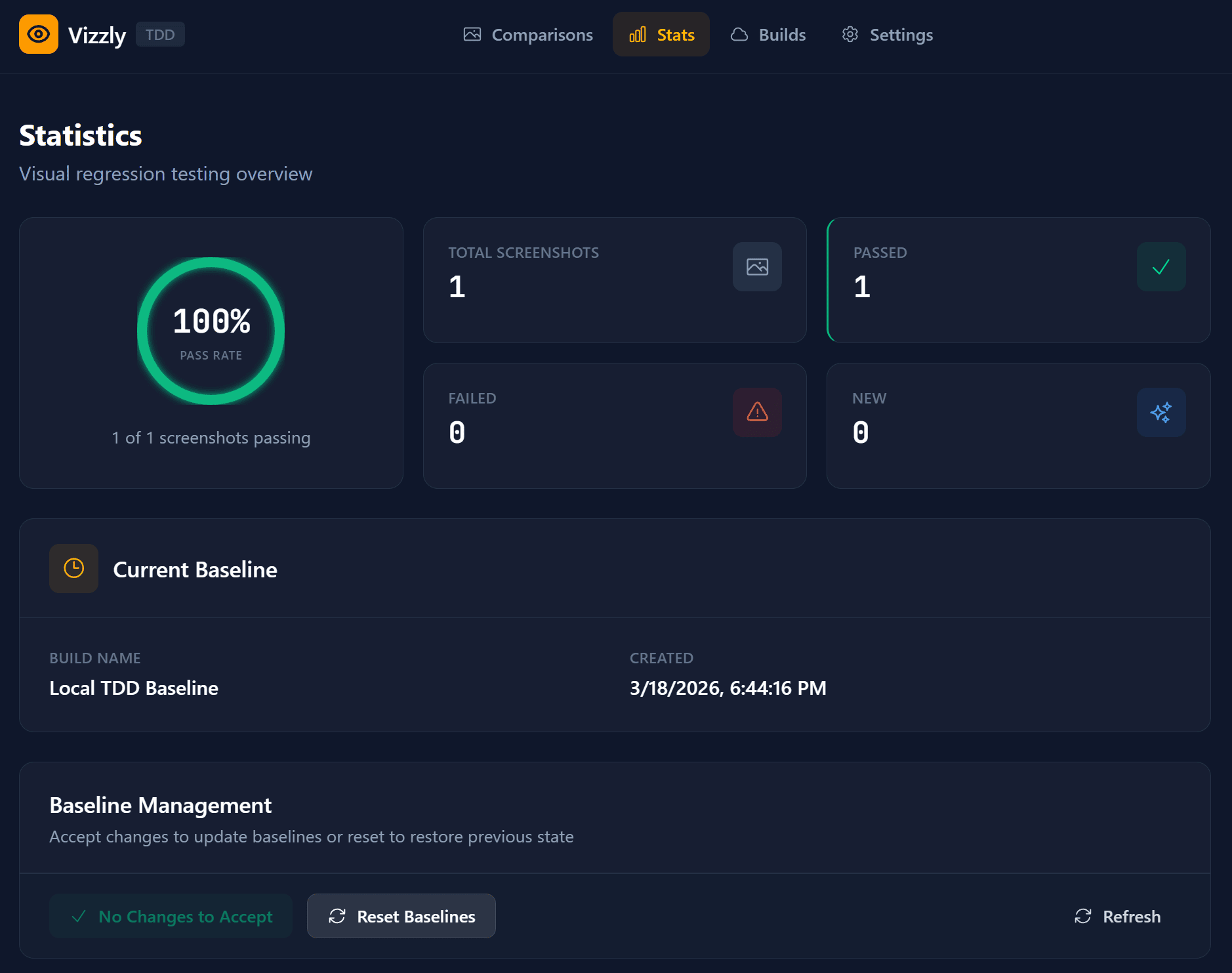
And the resulting local dashboard is shown below:
The local TDD Vizzly Dev Dashboard Stats
The screenshot above shows the "Stats" view of the local dashboard. You get a similar view on the cloud version for each project in your dashboard.
Collaborating with Teammates in Vizzly
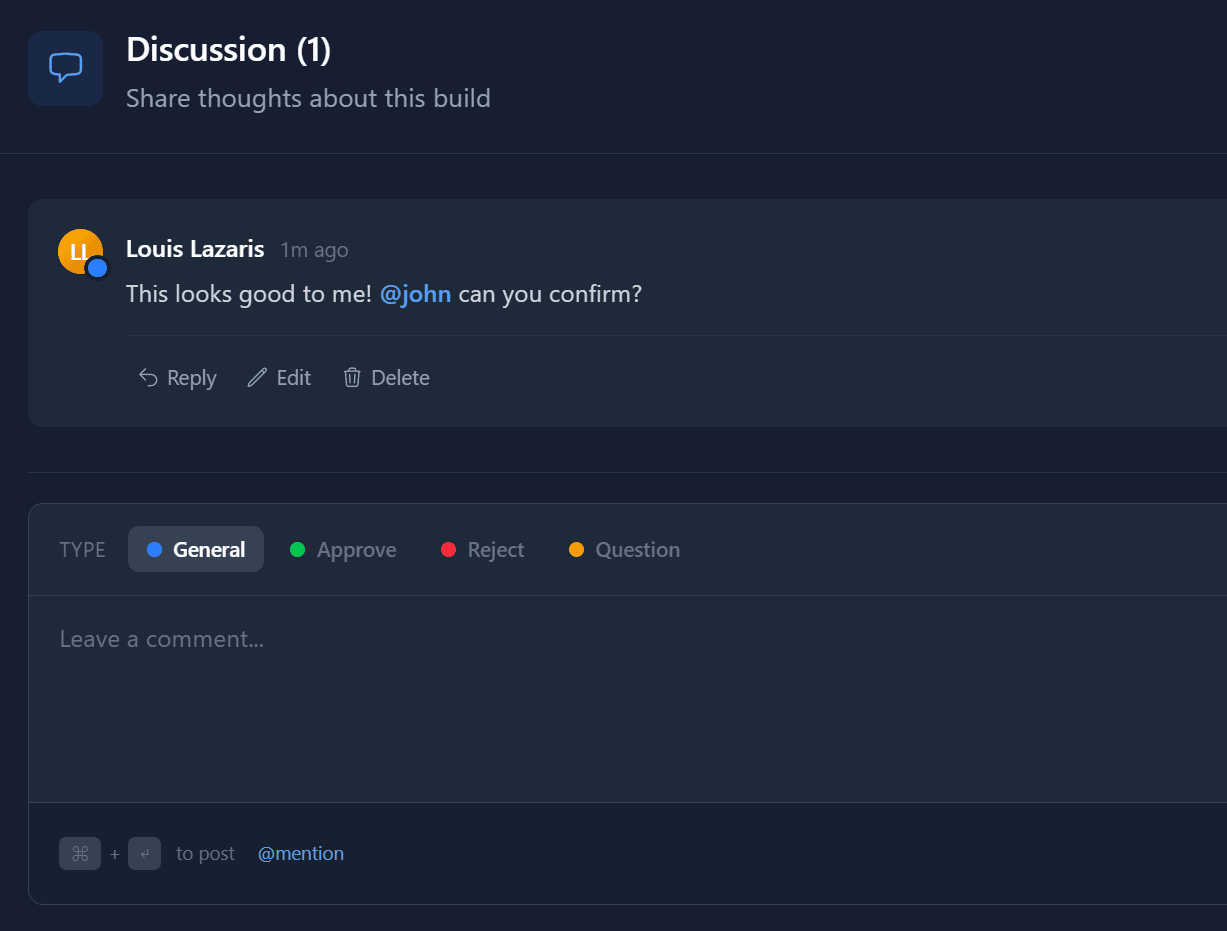
As mentioned, Vizzly includes tools for adding feedback for team communication on builds. In your cloud dashboard, go to the "Overview" tab of any build and scroll to the bottom of that page.
Similar to GitHub issues, here you and your team can discuss a particular build and provide feedback before a build is approved or rejected.
Commenting on a build with an @mention
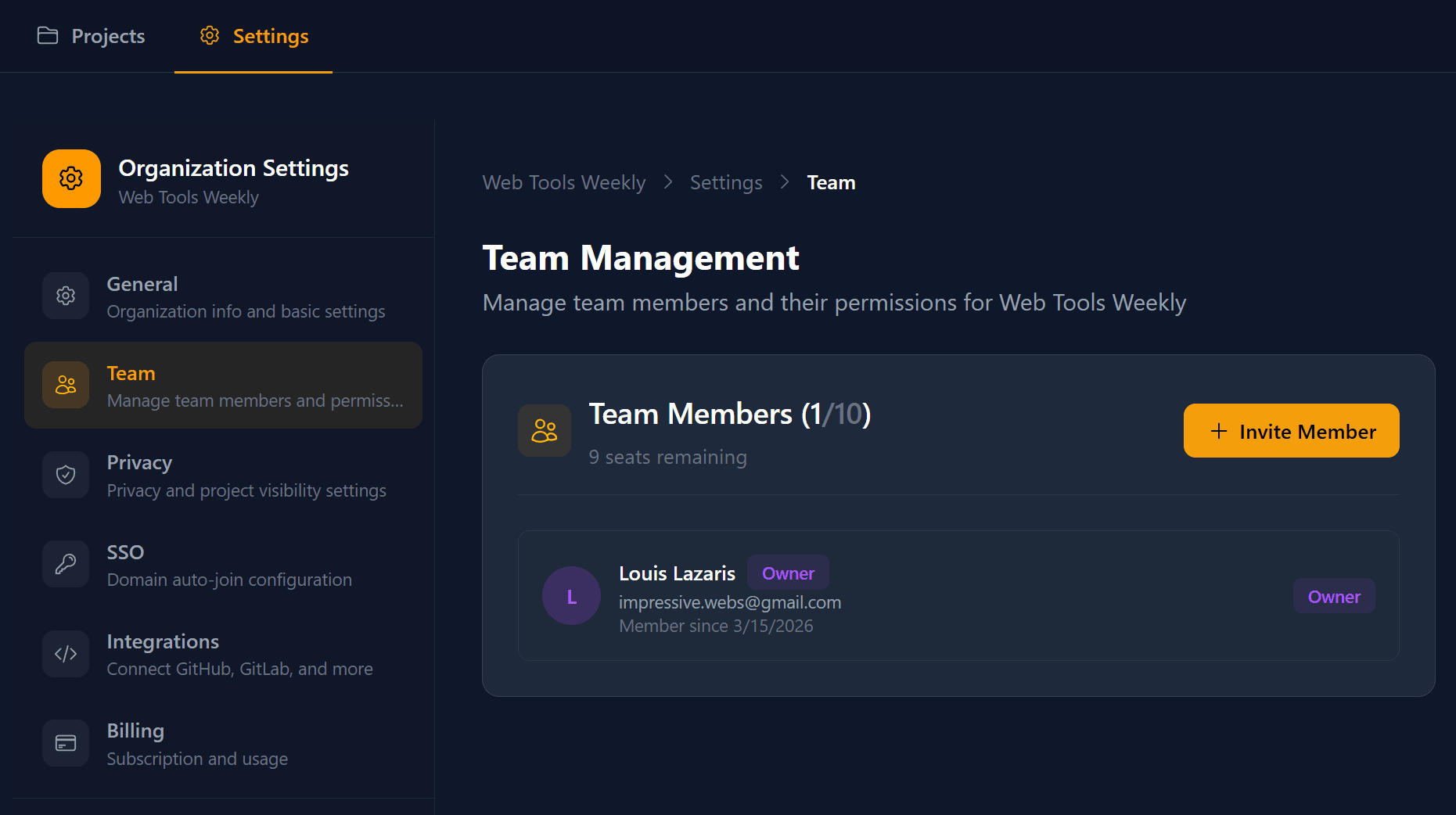
As shown in the example, Vizzly allows @mentions for teammates that have been added to the project. You can add or remove team members by visiting your Organization Settings then choosing "Team".
Managing Your Team in Vizzly
There's lots more to dive into with integrating Vizzly with your tools, but the above should give you a pretty good idea what it's capable of. The comprehensive docs are a great place to continue what I've considered here.
Try Vizzly Today
I'm pretty new to testing and using testing frameworks, but with a few AI-powered recipes, I was able to knock out a few testing scenarios that easily integrate Vizzly. Although running tests may have a bit of a learning curve, Vizzly pretty much gets out of your way, providing a fairly smooth process as long as your testing environment is solid.
As far as plans go, Vizzly offers a Free plan with limited features, a Starter plan for up to 10 team members, and a larger Team plan for up to 50 members. There's also an open-source plan that's free and includes all the features of the paid Starter plan – as long as the projects are public and open source.
Give Vizzly a spin today if you want a simple but robust set of tools for visual testing and diffing that slides right into your current testing workflow.
Now on to this week's tools!
|
CSS & HTML Tools
cheerio — A fast, flexible, and elegant library for parsing and manipulating HTML and XML using a subset of core jQuery for its API.
Beasties — A plugin that inlines your app's critical CSS and lazy-loads the rest, as a maintained fork of Google's critters project, now unmaintained, but without using a headless browser.
Techpresso — Get a daily rundown of what's happening in tech and what you shouldn't miss, read by 400,000+ professionals from Google, Apple, OpenAI, and more. SPONSORED
Base.css — A multipurpose classless stylesheet, with fully semantic rules, for complete customization and personalization of a webpage.
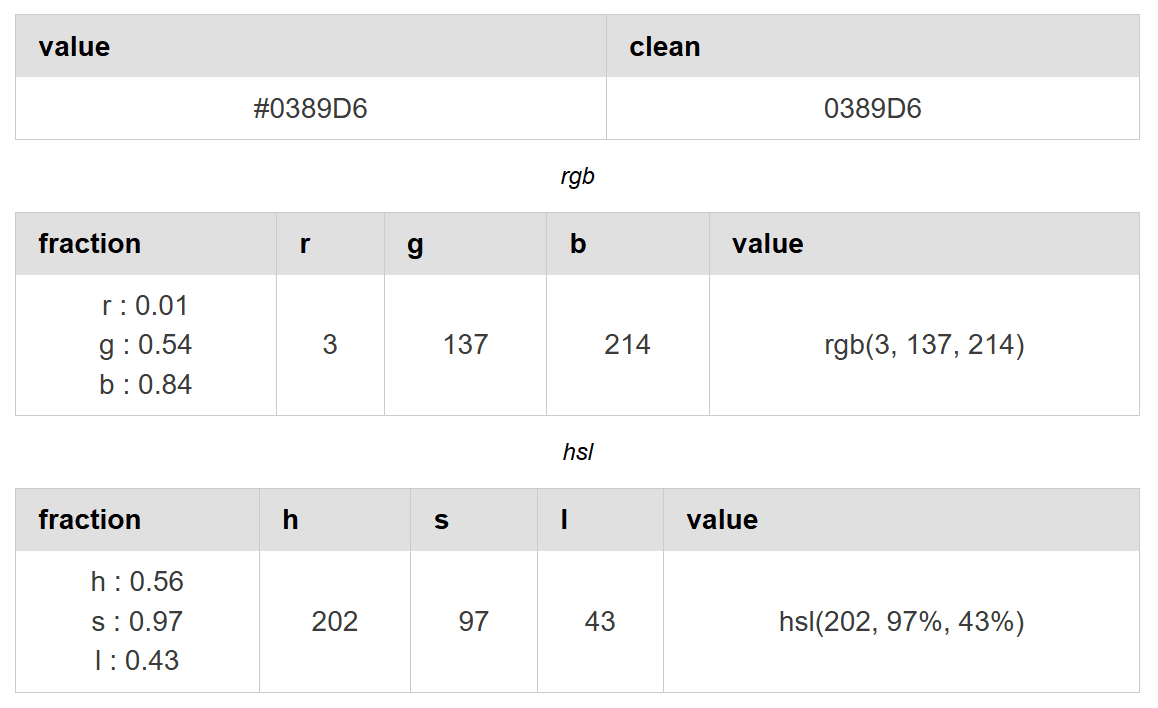
The Color API — A "Swiss army knife" for color, allowing you to use an API to convert to different formats, generate color schemes, and produce custom color-specific placeholders.
image-compare — A tiny, zero-dependency web component for comparing two images using a slider. Built with a focus on accessibility, performance, and progressive enhancement.
Font Generator — An online tool to convert normal text into fancy letters using Unicode-based font styles you can copy and paste anywhere.
Toon Text — A web tool that uses whimsical cartoon-like fonts and various CSS properties that you can edit live for creating fancy comic book-like text.
|
AI Tools, LLMs, etc.
Keychains.dev — Secure credential delegation for AI agents to allow them to access any API without leaking sensitive credentials, keeping users in control while permissions are scoped, transparent, and revocable.
Codex — A native app from OpenAI that enables you to build with agents using multi-agent workflows, adapting to your team's workflows, and automations that pick up work unprompted. Used as part of an existing OpenAI paid plan.
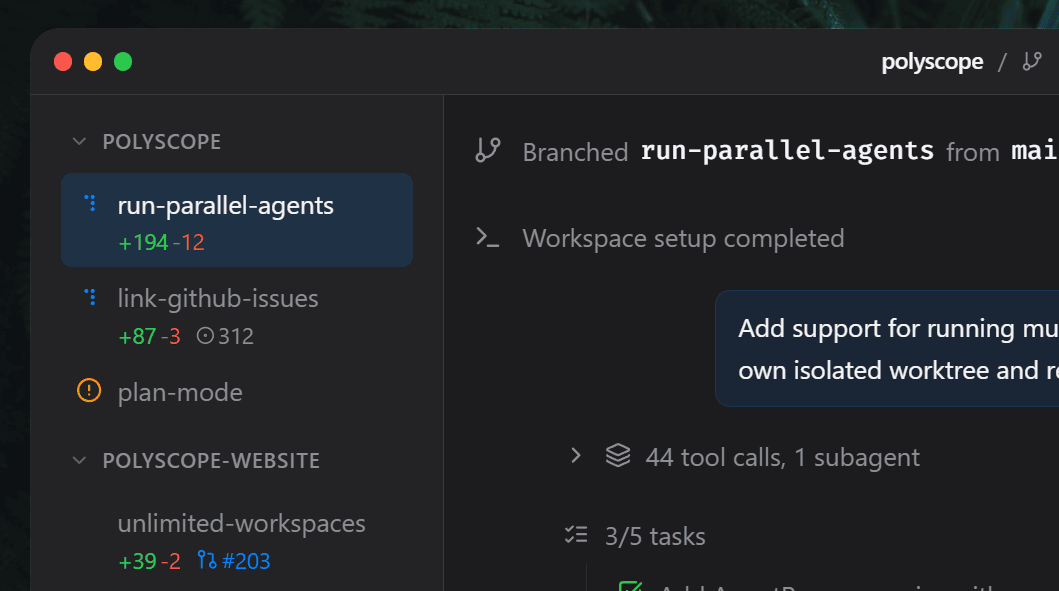
Polyscope — A Mac app that lets you run coding agents in parallel, with features like workspaces connected from multiple repos, progress tracking, crash recovery, and more.
TLDR AI — Keep up with AI in 5 minutes. Get the most interesting AI stories and breakthroughs delivered in a free daily email. SPONSORED
Cloudflare Vibe SDK — An open source full-stack AI webapp generator that lets you deploy your own instance of an AI vibe coding platform that you can run and customize yourself.
Agentation — An agent-agnostic visual feedback tool that lets you click elements on your page, add notes, and copy structured output that helps AI coding agents find the exact code you're referring to.
Claude Code MCP Server — An MCP (Model Context Protocol) server that allows running Claude Code in one-shot mode with permissions bypassed automatically.
Skills — An open agent skills ecosystem that provides reusable capabilities for AI agents that you can install with a single command to enhance your agents with access to procedural knowledge.
|
BugHerd Website Feedback & Bug Tracking Tool
BugHerd makes it easy for your clients to report bugs and leave feedback on websites. They simply point, click, and comment – BugHerd grabs a screenshot, saves technical details and creates a task for your team to track.
So you can fix website bugs immediately. No guessing. No wasted time.
- Visual point-and-click bug reports
- Automatic screenshot & user tech details
- Task tracking
- Deep two-way integrations
- No client login
- Ongoing public bug reporting
Start a Free Trial 🡺
|
Media Tools (SVG, Audio, etc.)
beheader — A polyglot generator for media files that uses the Bun runtime to generate a 'polyglot', that is a combination media file that can include video, audio, HTML, PDF, image, or ZIP.
ChartGPU — A TypeScript charting library built on WebGPU for smooth, interactive rendering, especially when you have lots of data.
Its Hover — A set of customizable React icon components with motion baked in that work seamlessly with Next.js, shadcn/ui, and modern design systems.
TLDR Dev — Get smarter about software in 5 minutes. The most important software engineering news in one daily email. Loved by 450,000+ readers. SPONSORED
SVG Studio — A multi-featured web-based SVG tool that includes optimization, debugging, fixing SVG rendering, cleaning up SVGs, and providing a better understanding of SVGs.
mini-img-editor — An online photo editor powered by WebGL, with lots of common photo editing features.
PlaceCats — A placeholder service for adding cat images to mockups using an API for width, the name of the cat you want to include (which belong to the developer), CSS-based fit options, and more.
Tooooools — A minimalist and lo-fi effects app for image and video processing online, with effects like distort, stippling, bevel, displace, and others.
|
|
Commercial Apps & Classifieds
Supermemory – long-term and short-term memory and context infrastructure for AI agents.
|
|
Refind – The best articles, tailored to your interests. Loved by 540,000+ curious minds. AD
|
Vecti – A collaborative UX design tool that turns complex workflows into intuitive visual solutions.
|
|
AgentMail – Email inbox API for AI agents, giving them their own email inboxes, like Gmail for humans.
|
Tech Productivity – Tools, tips, and articles on efficiency, brain science, remote work, and more. AD
|
|
SejHey – An AI localization platform that helps you translate and distribute apps, games, etc.
|
VideoEditAI.app – An all-in-one AI platform for video editing, video generation, and image creation.
|
|
|
A Social Post for Thought
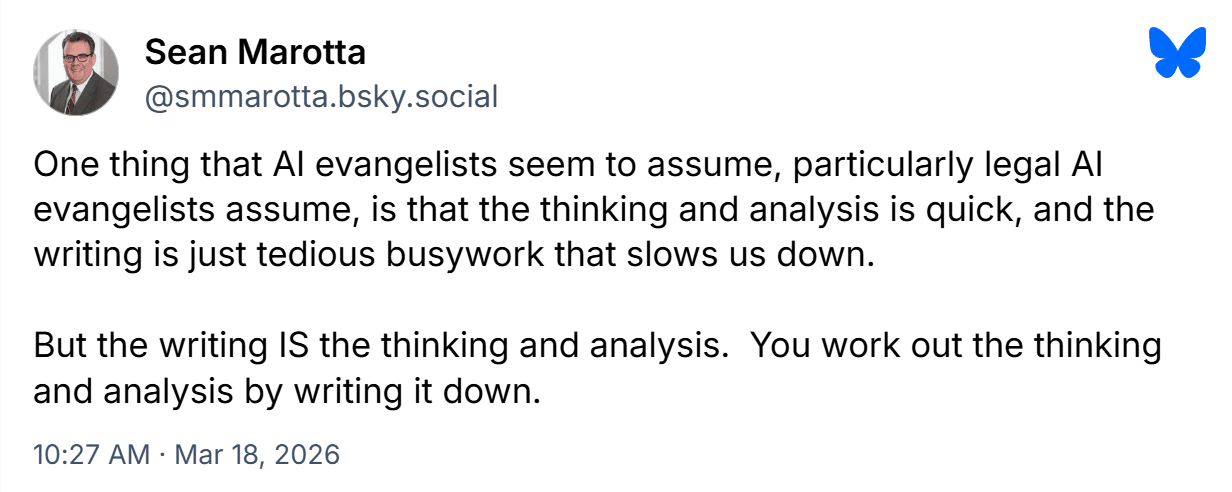
As lawyer Sean Marotta points out here, legal writing is one area where AI may not (and probably should not) have a large effect. You definitely don't want to get into legal troubles because of a poorly worded AI-based legal document.
Send Me Your Tools!
Made something? Reply to this email or send links via Direct Message on X or via chat on Bluesky (details here). No tutorials or articles, please. If you have any suggestions for improvement or corrections, feel free to reply to this email.
Before I Go...
AgeMDB is a unique website that lets you easily look up how old an actor was when they played a specific movie role.
Thanks to all for subscribing and reading!
Keep tooling,
Louis
webtoolsweekly.com
@LouisLazaris
|
|
|