Issue #653 (Passbolt Review, React, Media, Git/CLI)01/22/26
The following is a paid product review for Passbolt, an open source secrets and password management solution for modern IT teams of any size.
If you're working on a team and have to manage a large number of passwords and other credentials that are shared among members, you probably understand how challenging that can be.
You want a solution that's scalable and isn't primitive and insecure like sharable text files, spreadsheets, or hardcopy documents. Even many app solutions like in-browser password management and environment variables aren't secure or sharable. This is where Passbolt can provide a structured and secure solution for managing your team passwords and other secrets.
I'll go into more details on getting started with Passbolt, but here's a basic overview of the features and benefits:
- Security and Privacy by design, Passbolt is used by government agencies and other regulated industries.
- There are three versions, depending on your needs:
- Built for secure collaboration of passwords and secrets
- Anyone on your team will find it easy to use
- A CLI to perform CRUD operations on your Passbolt instance (cloud or self-hosted)
- Users can download a browser extension, mobile app, and desktop app (Windows) to use Passbolt on any device
Getting Started with Passbolt
The easiest way to get started using Passbolt is to sign up for the free trial of the Cloud Edition and create your account. You'll be asked to create your universal passphrase, choose a security token (for helping prevent phishing attempts), and download a recovery kit (which holds your secret key for accessing Passbolt on a new device).
style="color: #c54a28;text-decoration: none;font-weight: normal;" target="_blank">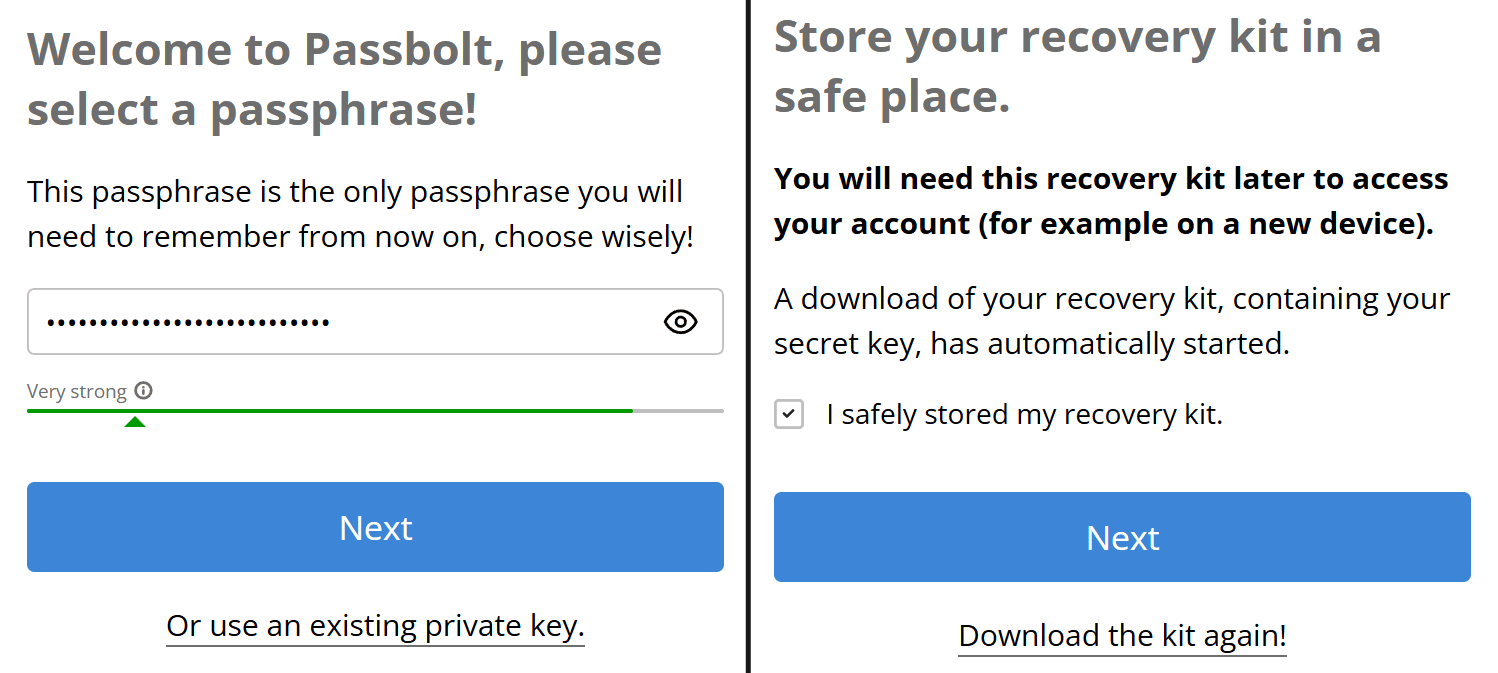 |
Signing up for Passbolt, setting up your passphrase and secret key
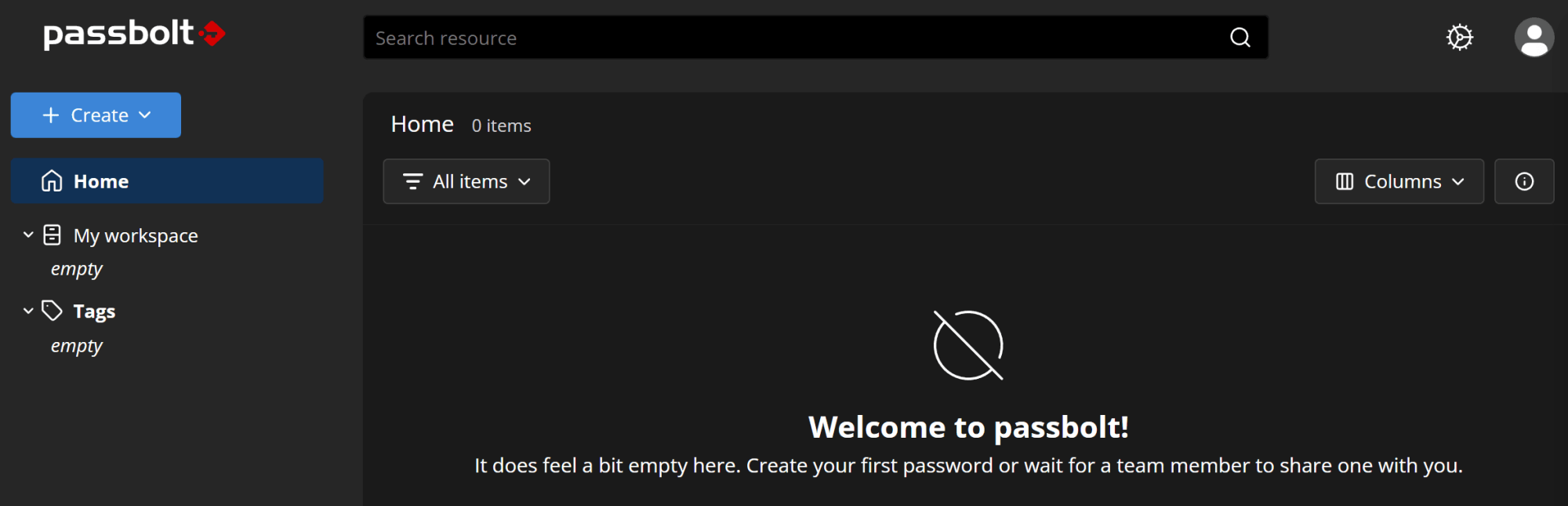
During the setup process, you'll also be asked to install one of the browser extensions. Once your account is set up (you'll get an email to confirm your account access), you'll be able to view your Passbolt dashboard, which has four themes to choose from (2 dark and 2 light).
The Passbolt dashboard using the Midgar dark theme
Using the Browser Extension with Passbolt
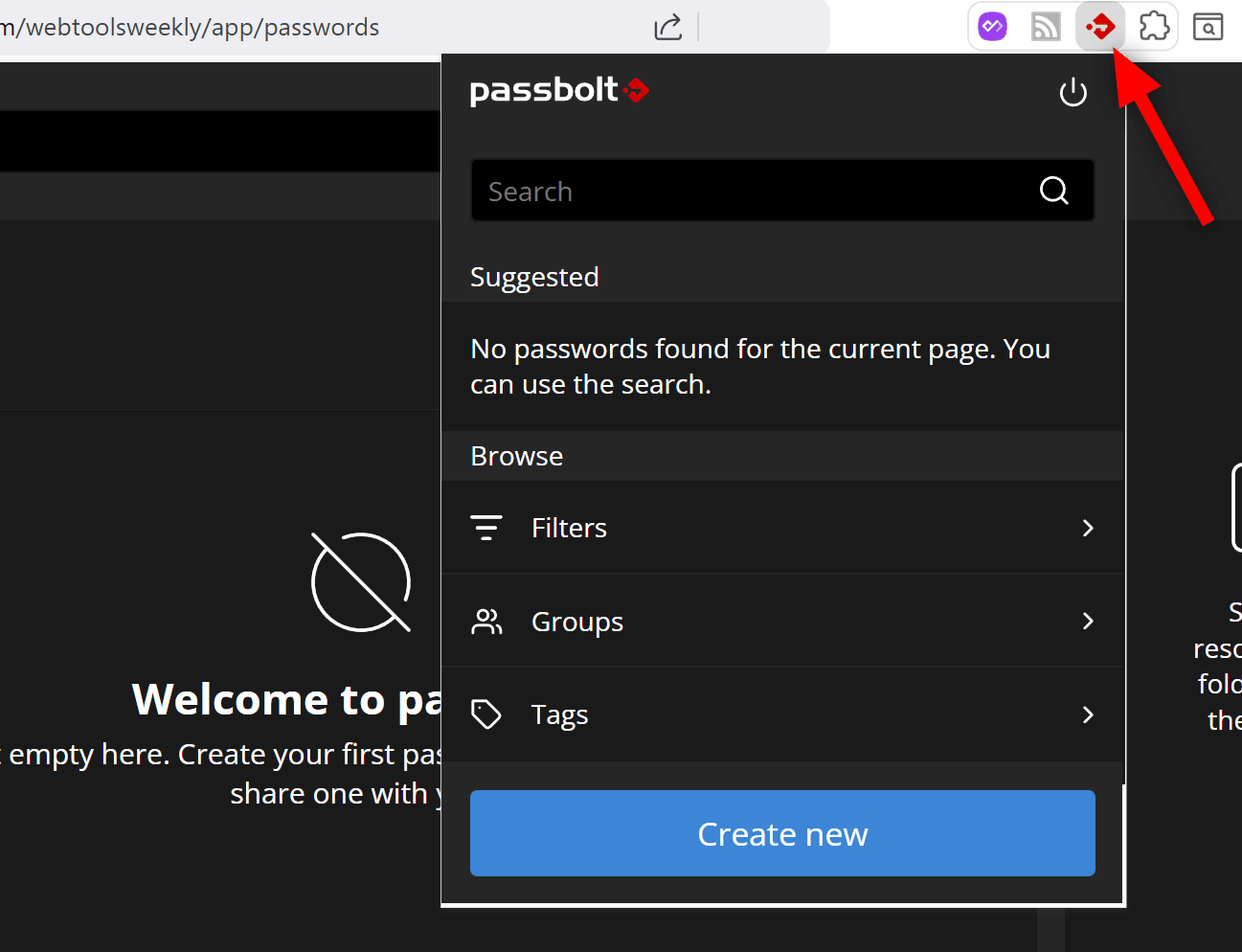
The screenshots in this review are from the web UI, but you'll find similar options in the native app. While signed in, you'll have access to the Passbolt extension that you installed during setup, which you can pin for easy access in your browser.
Pinning and viewing the Passbolt extension on a Chromium browser
The browser extension allows you to browse your passwords and secrets using filters, groups, and tags. You can create new passwords or search for one. If you visit a website that uses saved Passbolt credentials, you'll see this indicated in the icon that opens the extension's modal.
Importing Passwords to Passbolt
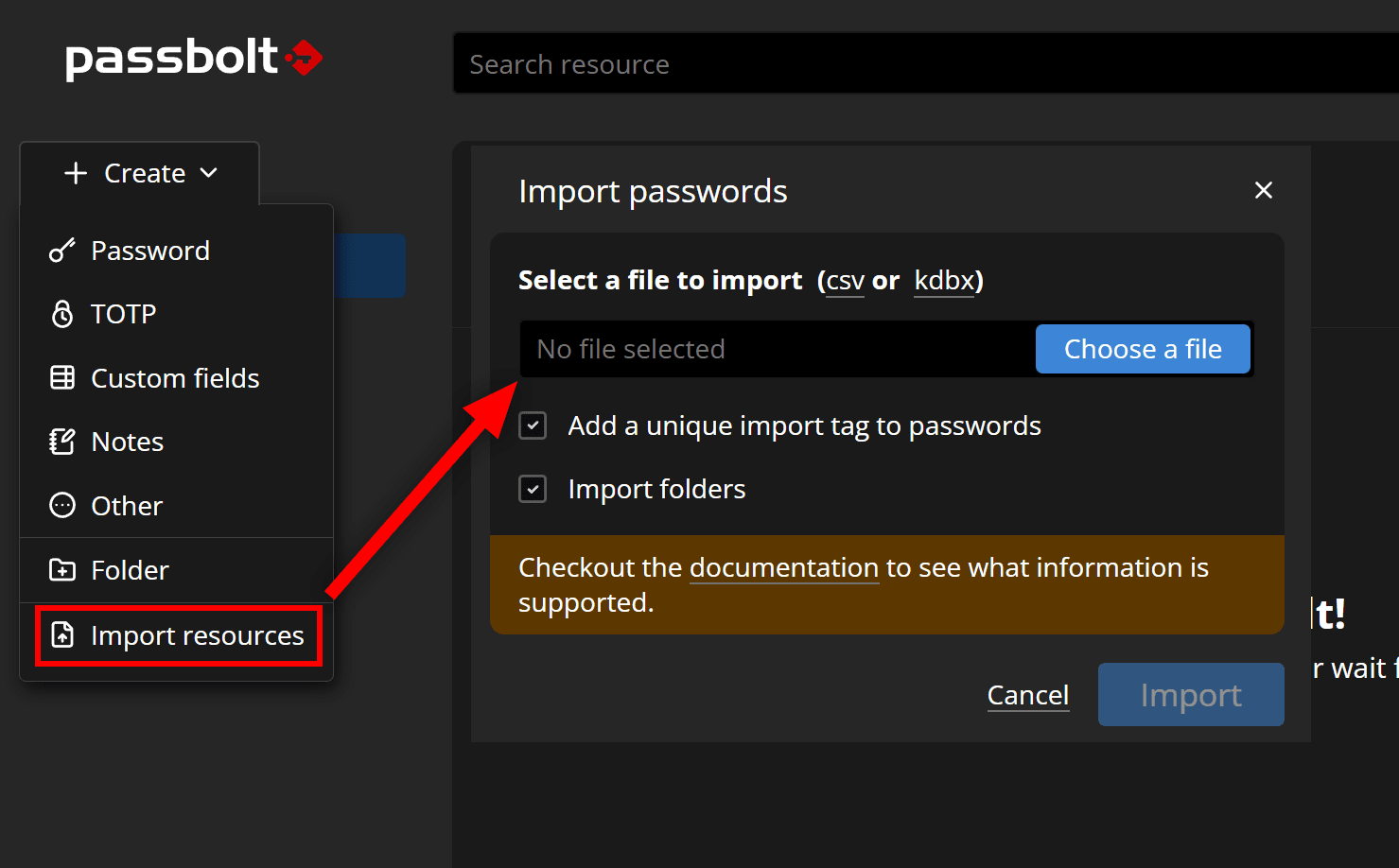
When getting started, Passbolt allows you to import passwords from an existing password manager (1password, Bitwarden, Lastpass, etc.) or from your browser (which you can export in your browser's settings). The import dialog supports CSV format or KDBX (used in KeePass).
Importing passwords into Passbolt from a browser or password manager
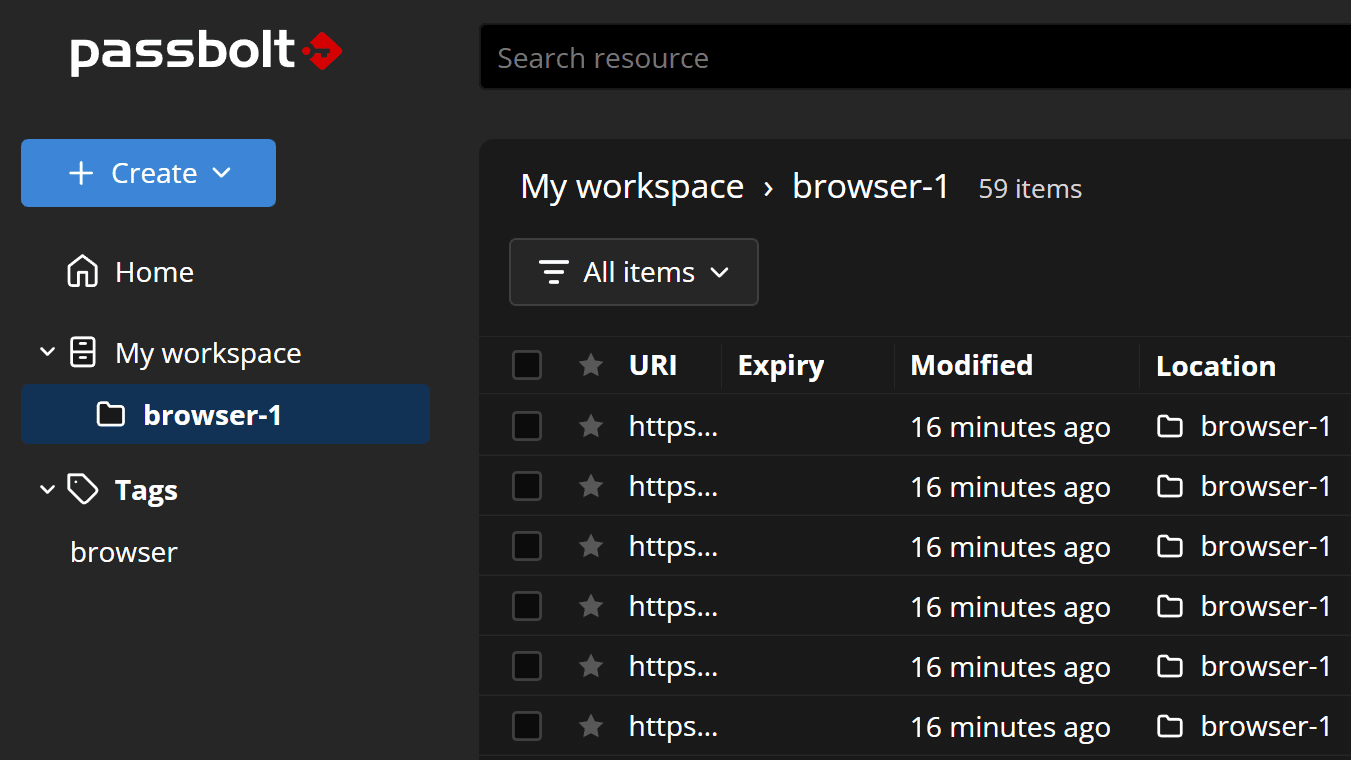
When a password import is complete, you'll see all your imported passwords under "My workspace", inside an auto-named folder and tagged using the same name. You can rename the folder and tag or even delete the folder and move the items up to the workspace root (if you don't want the imports in a folder).
Viewing imported passwords in a folder in "My workspace"
Creating a Resource in Passbolt
In addition to importing, passwords and secrets can be created individually in your dashboard. You'll see the big "Create" button in the top left area. If you click that, you'll have the option to create multiple types of resources: a new Password, a Time-based One-Time Password (TOTP), a Note, or a Custom Field.
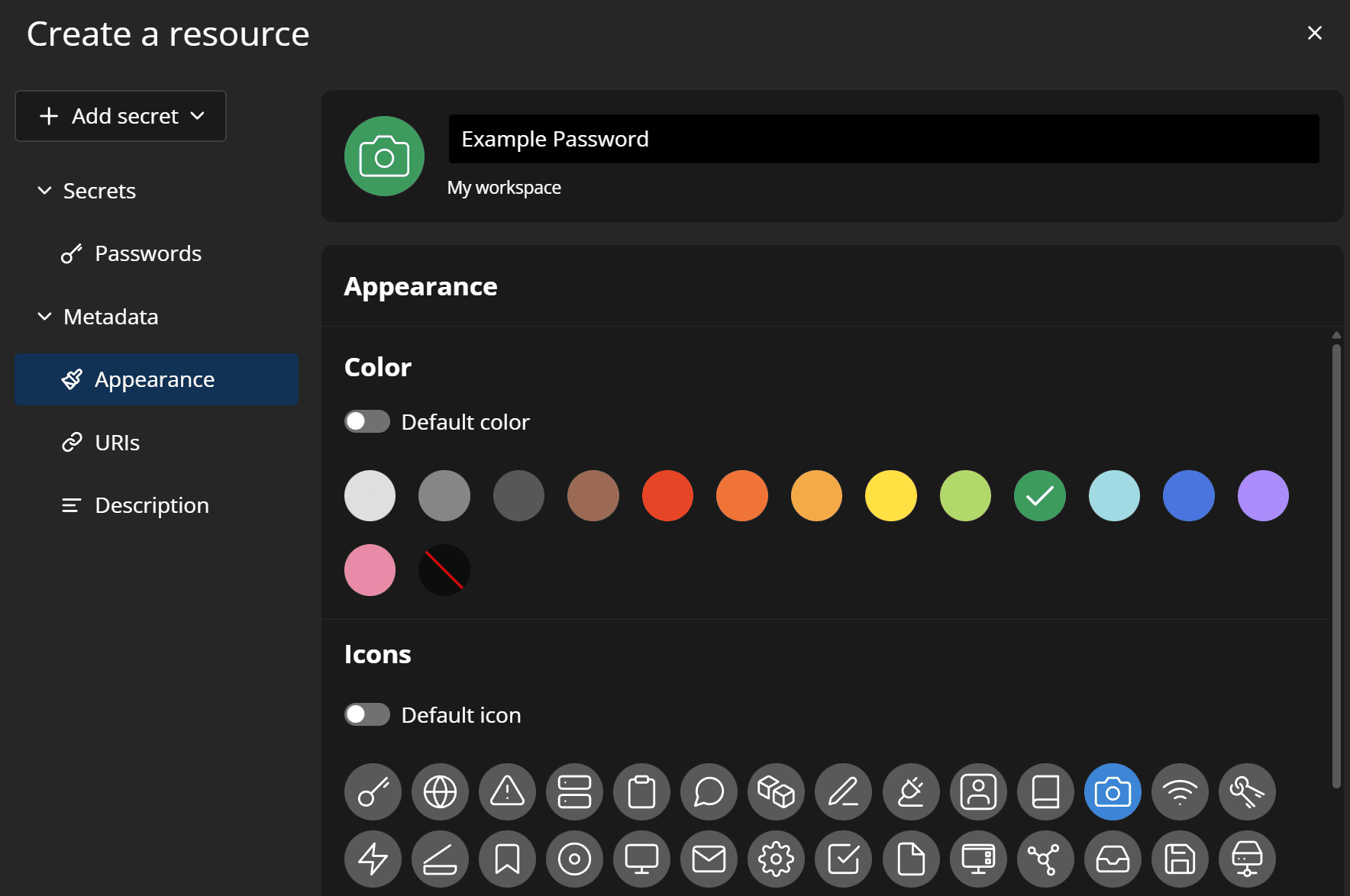
For any resource you create, you can add basic info like Name, URI, and Username/Password credentials, as well as Metadata like Appearance, multiple URIs, and a Description.
Creating a new resource in Passbolt, with optional color and icon.
As shown above, I've created a new "Example Password" resource with a custom appearance that includes a color and associated icon.
Features in the Dashboard
When viewing a list of your resources in the web UI, you'll notice lots of easy-to-use features that let you do just about anything with one or more of your items. From the list of items you can:
- Copy the credentials or info for any resource
- Use the "Share" feature to make a resource accessible to other team members
- Copy a Permalink to the resource
- Delete or Export one or more selected resources
- Use the sidebar to view full details and activity for that resource
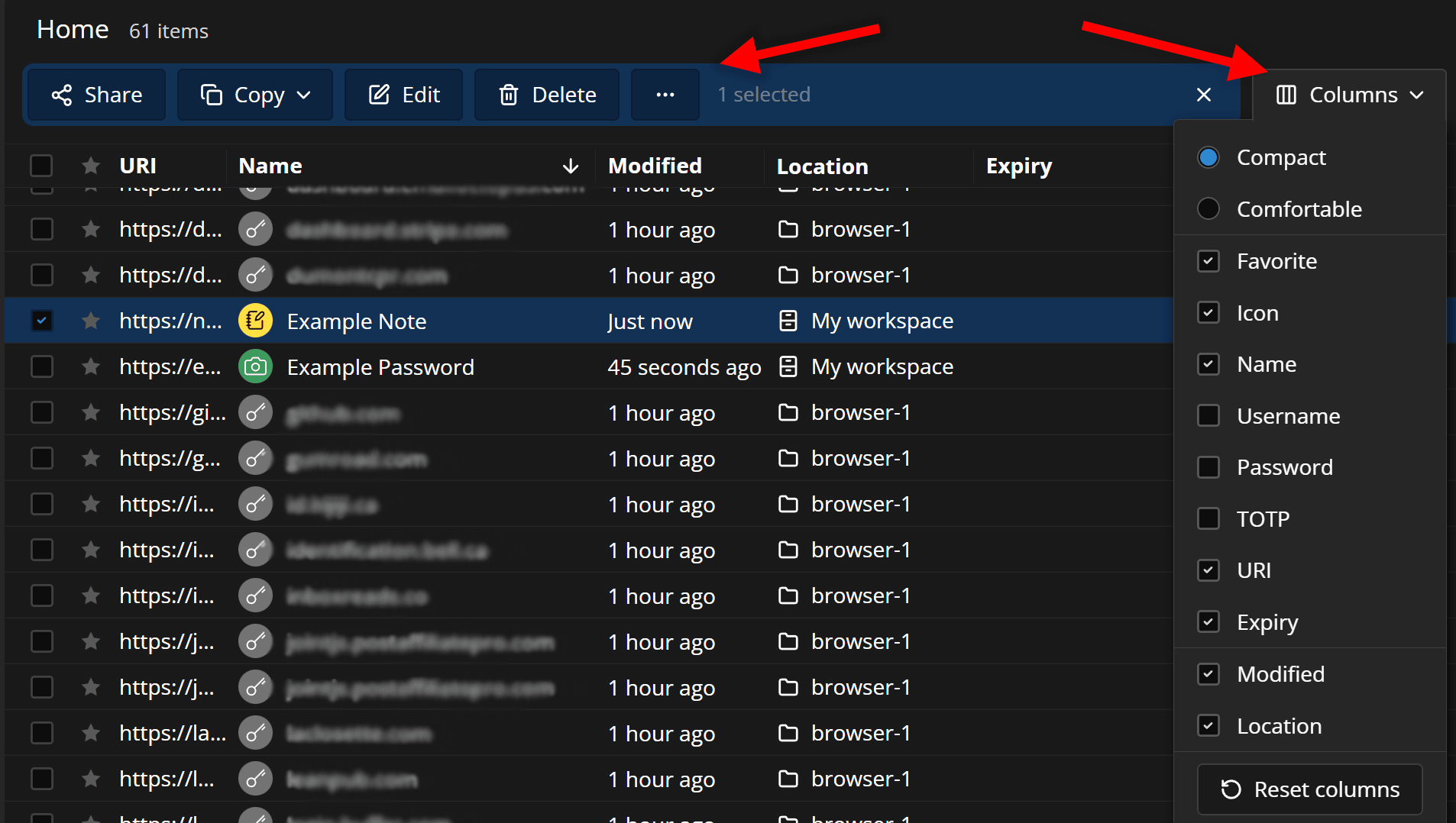
You can also adjust the viewable Columns in the table that displays your resources so you can simplify which fields are shown, depending on how many are useful to you.
Managing resources using the Passbolt web dashboard
In the screenshot above, I've selected one of my resources, which brings up a toolbar for sharing, editing, etc. The Columns dropdown is also expanded, demonstrating the flexibility of the visible columns (Modified, Location, Expiry, etc).
Settings for Users and Organizations
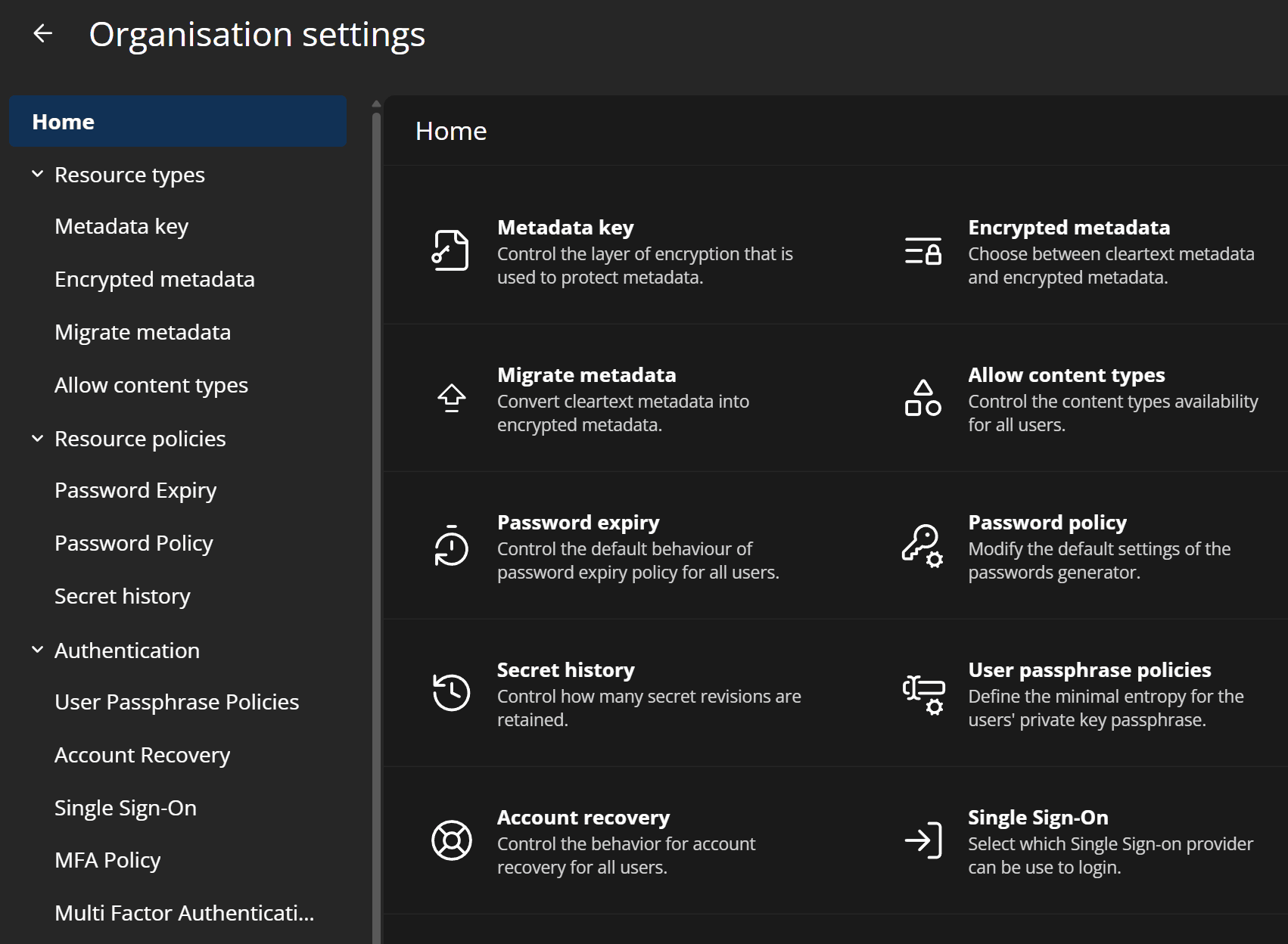
As mentioned, Passbolt is a powerful tool for teams. This is evident in the Organization Settings, which is accessible from the cog icon in the top-right area of the web UI.
Organization settings in Passbolt
Here you'll find a whole slew of organization-level settings including encryption levels, password policies, account recovery, SSO, MFA, notifications, among others.
The cog icon also provides access to manage users and groups using a UI that's similar to how you manage your resources.
Try Passbolt Today
All in all, the Passbolt interface was extremely easy to get accustomed to and I can see how its features can be powerful when used in a team environment where security and collaboration are top priorities. It was also a breeze to use their simple but informative documentation.
So if your IT team is looking for an effective secrets and password management solution, Passbolt is worth a look.
You can check out the self-hosted pricing plans or go straight to the Cloud edition which you can try out right away with minimal setup.
Now on to this week's tools!
|
React Tools
gemini-live-react — React hook for Google Gemini Live API - real-time voice streaming, session recording, workflow automation, and smart element detection.
fate — A modern data client for React and tRPC, inspired by Relay and GraphQL, that combines view composition, normalized caching, data masking, Async React features, and tRPC's type safety.
Free React DataGrid with PRO-Level Features — SVAR React DataGrid delivers advanced filtering, context menus, tree data, virtual scrolling, in-cell editing, and accessibility features. A pure React component (no wrappers) that integrates natively with your existing codebase. SPONSORED
GTKX — A library to write Linux desktop applications using React and GTK4 (a popular widget toolkit for Linux UIs), featuring native performance, HMR, familiar CSS-in-JS patterns, and a testing API.
RSC Explorer — An online tool that lets you explore how the React Server Components protocol works, allowing you to inspect the RSC stream step by step and observe the React tree being streamed at every step.
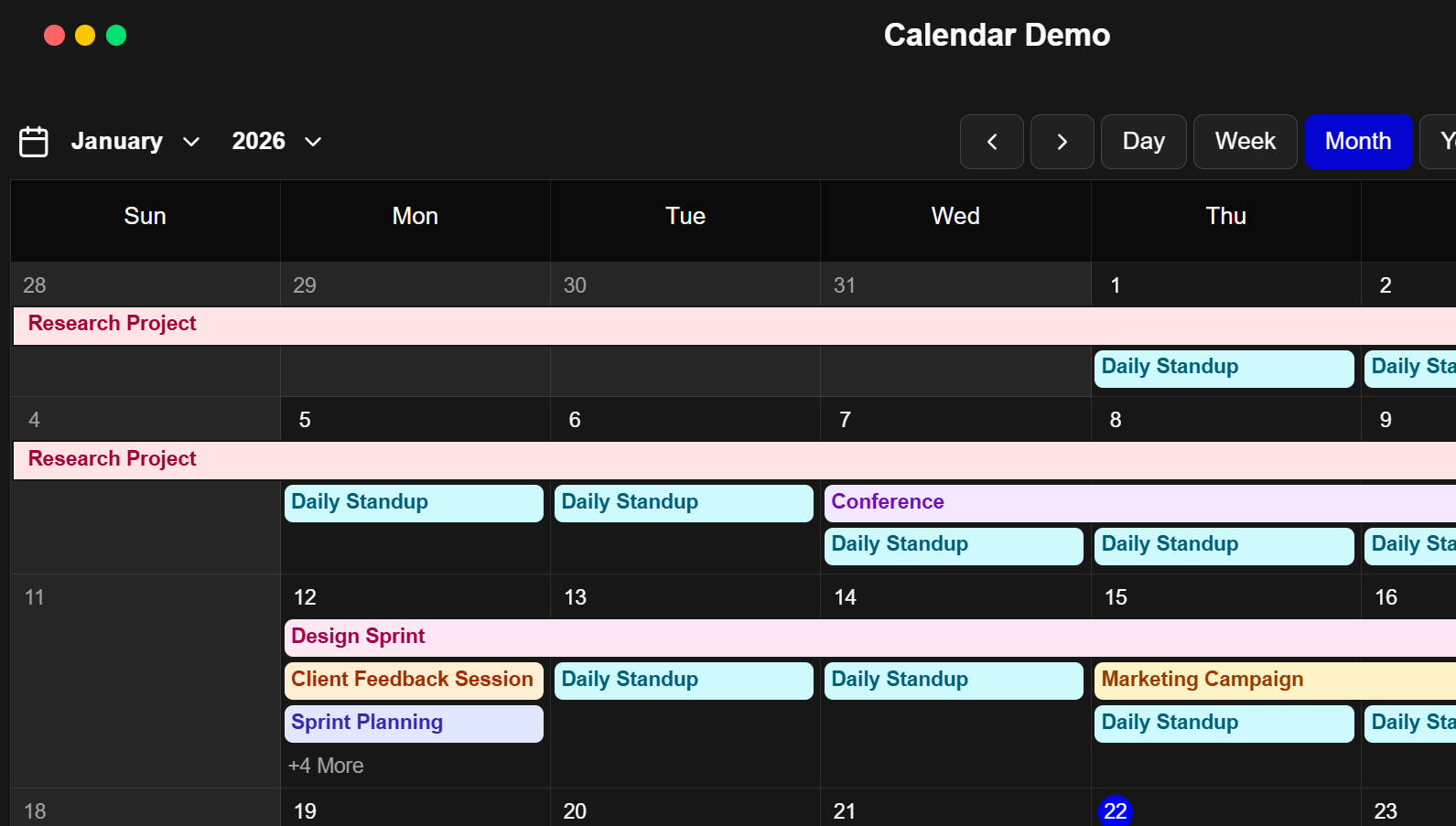
ilamy Calendar — A headless, customizable React calendar component with drag-and-drop, multiple views, time zone support, resource scheduling, and more, built with TypeScript, Tailwind, and shadcn/ui.
 |
X-Ray React — A dev tool, triggered by a keyboard shortcut, that reveals your React UI's component structure via an overlay of your React components, enabling you to click any component to open its source file in your editor.
Composify — An open-source library that adds a visual editor to your React application, allowing non-developers build pages using your existing production components, so engineers can focus on feature work.
|
Media Tools (SVG, Video, etc.)
Media Masher — An open source video editing system for the web, enabling you to edit in the browser with low-res previews, while rendering high-quality output on the server.
FontSniff — Upload any image and let this AI-powered engine will identify the font with remarkable precision, including style, weight, character shapes, and typographic nuances.
Avatune — A platform to create unique, production-ready avatars with powerful frameworks, beautiful themes, and intelligent predictive tooling, no design skills required.
ICONIC — An open source collection of community-curated SVG icons for popular developer tools and technologies, in dark and light themes, designed for GitHub READMEs, portfolios, resumes, etc.
Techpresso — Get a daily rundown of what's happening in tech and what you shouldn't miss, read by 400,000+ professionals from Google, Apple, OpenAI, and more. SPONSORED
Affinity — The popular design and photo editing suite for Mac and Windows, now owned by Canva, is now free to use and has support for importing other design app formats, page layout features, and lots more.
ImageConverter — A local-only and secure image conversion tool that can convert just about any image format to another, including SVG, HEIC, AVIF, TIFF, GIF, JPEG, JPG, PNG, and WebP.
LooksSame — A Node.js utility for comparing PNG images, taking into account human color perception, created specially for visual regression testing, but can be used for other purposes.
|
How the Rich Pick Stocks
If you’ve ever stared at your screen wondering where the real opportunities are hiding, this class is your shortcut.
In this free live session, you’ll see how modern A.I. cuts through the noise and zeroes in on the sectors, stocks, and setups that actually matter right now. No guessing. No chasing. Just clear direction based on intermarket signals that most traders never even realize are moving their trades.
If the markets feel chaotic, this is where you regain control.
Discover how pros find trades in minutes instead of hours, and give yourself the edge you’ve been missing.
Join the Free Class 🡺
|
Git, GitHub & CLI Tools
ticket — A Git-backed issue tracker for AI agents, that's fast and contained in a single bash script, offering dependency graphs, priority levels, and zero setup.
lockenv — A simple, CLI-friendly secret storage that lets you safely commit encrypted secrets to version control.
mdxlint — A CLI tool to lint and format MDX content, allowing you to check for lint violations, transform and format MDX files, and more.
dockcheck — A CLI tool to automate docker image updates or get notifications when updates are available.
TLDR Dev — Get smarter about software in 5 minutes. The most important software engineering news in one daily email. Loved by 450,000+ readers. SPONSORED
check-projects — A fast, cross-platform CLI tool written in Go to check the Git status of multiple projects organized by categories.
GitHub Feedback SDK for SwiftUI — A simple, lightweight SwiftUI package for collecting user feedback (bug reports and feature requests) directly in your iOS app using GitHub Issues as the backend.
Optique — A type-safe CLI parser for TypeScript to build composable parsers for command-line interfaces with full type safety, automatic type inference, and built-in shell completion support for Bash, zsh, fish, PowerShell, and Nushell.
|
|
Commercial Apps & Classifieds
fanfa.dev – An online tool to create animated Mermaid diagrams visually and export in various formats.
|
|
Refind – The best articles, tailored to your interests. Loved by 540,000+ curious minds. AD
|
JSX Tool – A Chrome extension that provides a React inspector that lets you treat JSX like HTML in the page.
|
|
EasyBlog – A lightweight headless blog CMS for modern Next.js websites and apps.
|
Tech Productivity – Tools, tips, and articles on efficiency, brain science, remote work, and more. AD
|
|
Caricature Maker – An online tool to turn photos into funny and artistic caricatures in seconds.
|
Falva – An AI-powered visual design infinite canvas to go from idea to creation quickly.
|
|
|
A Social Post for Thought
Are views on developer YouTube accounts decreasing? In light of AI, is it worth doing developer content on YouTube anymore? This discussion from a YouTube dev creator addresses that issue.
Send Me Your Tools!
Made something? Reply to this email or send links via Direct Message on X or via chat on Bluesky (details here). No tutorials or articles, please. If you have any suggestions for improvement or corrections, feel free to reply to this email.
Before I Go...
Walkman.land is a resource that pays tribute to the classic Walkman, the physical music player originally manufactured in 1979. The site attempts to collect all the once commercially available models under in a single browsable catalog with photos and all the tech details for each one.
Thanks to all for subscribing and reading!
Keep tooling,
Louis
webtoolsweekly.com
@LouisLazaris
|
|
|